How to separate PDF pages online
Extract pages or split a large PDF into smaller files for free
Large PDFs create friction everywhere they go: email attachment limits, slow mobile downloads, and portals that reject files over a megabyte cap. Sometimes you only need pages 12 through 18 from a hundred-page report, or you want each invoice in a consolidated scan saved as its own file for accounting. Splitting a PDF — extracting selected pages or dividing a document into parts — solves those problems without re-scanning or copying content by hand.
VSPIC Split PDF is a free browser utility that separates PDFs on your device. Define page ranges, pull out individual sheets, or split a file into multiple outputs depending on what the tool supports, then download the results immediately. Like other VSPIC PDF tools, splitting runs locally in your browser so confidential contracts, student records, and medical paperwork never pass through a remote conversion server.
What does splitting a PDF mean?
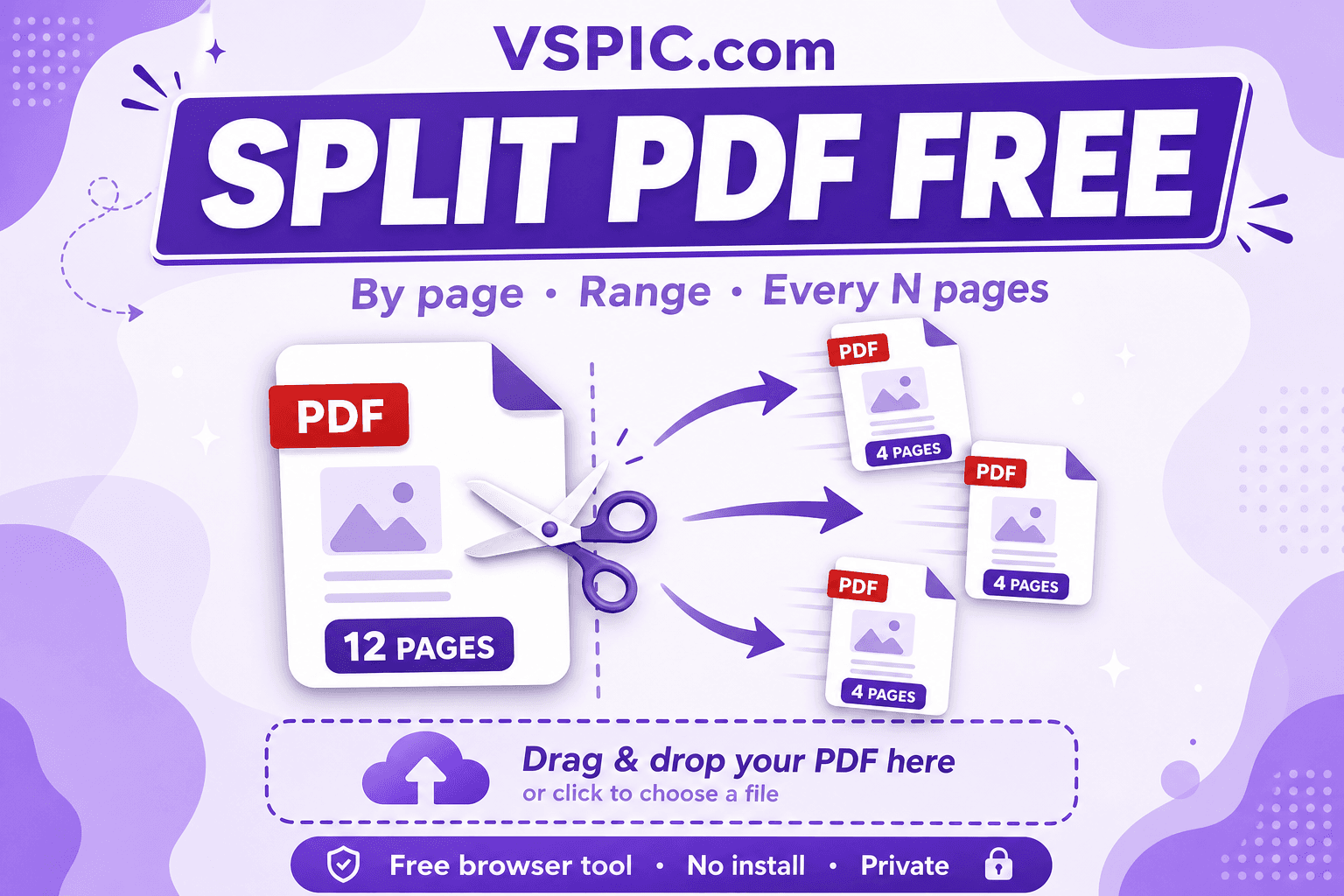
Splitting a PDF means creating one or more new PDF files from a subset of pages in an original document. The source file stays intact unless you choose to overwrite it; typically you download new files containing only the pages you specified. Split operations copy page content — text, images, annotations, and form fields on those pages — into fresh PDF containers with correct page dimensions and rotation.
Split differs from deleting pages. Remove PDF Pages drops unwanted sheets from a single output file. Split is for when you need multiple deliverables from one source — sending chapter three to a colleague while keeping the full manual archived, or breaking a batch scan so each receipt is its own attachment for expense software.
VSPIC Split PDF handles the operation client-side using in-browser PDF libraries. You select your file, specify ranges or extraction rules, and receive downloadable parts. No registration, no subscription, and no mandatory cloud upload — which matters when the PDF contains personally identifiable information or trade secrets.
Why split PDFs instead of sharing the whole file?
Stay under email and portal size limits
Many email gateways block attachments above 10–25 MB. A single high-resolution scan can exceed that quickly. Splitting into logical sections — by chapter, date, or client — lets each part pass size checks while preserving full quality within each chunk.
Share only what recipients need
Sending an entire personnel file when HR only asked for the signed offer page creates unnecessary data exposure. Extract the relevant pages and share the minimum necessary copy. This supports least-privilege practices and reduces accidental disclosure if the email is forwarded.
Organize batch scans into individual documents
Flatbed scanners often produce one long PDF containing dozens of separate forms separated by blank pages or barcode sheets. Splitting by range or using manual breakpoints turns that monolith into per-document files ready for naming and filing in a DMS.
Speed up review workflows
Reviewers choke on hundred-page attachments. Splitting a report into sections lets parallel review — legal reads the contract while finance reads the pricing appendix. Merge PDF recombines approved sections if you need a single final packet later.
Prepare inputs for other tools
Some browser operations struggle with extremely large PDFs on low-memory phones. Splitting first makes rotation, compression, and password protection faster and more reliable on each segment.
How to split a PDF with VSPIC
Before splitting, note total page count and identify the ranges you need. If the document has a table of contents, use it to map page numbers. For batch scans, scroll through once to mark where each sub-document begins and ends.
- Open Split PDF on vspic.com and upload your PDF by drag-and-drop or file picker.
- Choose split mode: extract a continuous page range (for example pages 5–12), multiple ranges, or split into individual page files depending on available options.
- Enter page numbers carefully — PDF page indices are usually 1-based in user interfaces. Preview thumbnails when shown to confirm you selected the right sheets.
- Run split and download the output file or ZIP of multiple PDFs. Open each part to verify completeness before deleting the original or sharing externally.
Extract pages in your browser. No account required.
Split your PDF now — freeReal-life use cases for splitting PDFs
Extracting a signed signature page
Sales closes deals in a twenty-page proposal but only the signature page must go to billing. Split that page into its own PDF for CRM upload while the full proposal stays in the deal room.
Breaking course materials by module
Professors distribute one scanned textbook PDF but assign readings by chapter. Teaching assistants split weekly ranges so students download smaller files on mobile data plans.
Separating bank statements by month
Annual statement PDFs contain twelve months in one file. Splitting by month simplifies mortgage applications that request three consecutive statements — attach three small PDFs instead of one huge export.
Insurance claim documentation
Claim packets combine photos, police reports, and medical bills. Adjusters ask for subsets. Split relevant sections rather than granting access to unrelated medical history pages.
Developer API documentation excerpts
Technical PDF manuals span hundreds of pages. Engineers extract the API reference section for offline reading or inclusion in internal wikis without hosting the entire manual.
Advantages of VSPIC Split PDF
- Free with no arbitrary page limits from VSPIC.
- Local browser processing protects sensitive uploads.
- Fast extraction without installing Adobe Acrobat or similar suites.
- Works on desktop and mobile browsers.
- Output files remain standard PDFs for any reader.
- Pairs with Merge PDF, Compress PDF, and Rotate PDF in one toolkit.
Splitting preserves fonts and embedded images on extracted pages when the source PDF is well-formed. Corrupted source files may produce incomplete splits — open the original in a PDF reader first to confirm it displays correctly throughout.
Common problems and fixes
Wrong pages extracted
Off-by-one errors are common when cover pages are unnumbered. Compare thumbnail previews to the printed page numbers on the document, not just the PDF viewer page counter if front matter uses Roman numerals.
Split file missing annotations or forms
Some interactive elements span pages or live in document-level structures. If a form field disappears, the field may be defined globally — try extracting a wider range or editing in a full desktop editor.
Browser runs out of memory
Split huge scans in multiple passes, or compress first with Compress PDF. Close unused tabs and retry on a desktop machine if mobile fails.
Password-protected PDF cannot split
Unlock the file with VSPIC Unlock PDF if you know the password, then split the decrypted copy.
Expert tips for splitting PDFs
- Name output files descriptively immediately after download — split-1.pdf is useless in archives.
- Keep the master PDF until all recipients confirm partial files are complete.
- Split before compressing if only some sections need heavy reduction.
- Use blank pages or divider sheets when scanning batches to make range selection easier later.
- Document page ranges in email cover notes so recipients know partial files are intentional.
- Combine split with Protect PDF when sending sensitive excerpts.
For recurring splits on identical document structures, note the page ranges in a team runbook so nobody re-counts pages every month.
VSPIC vs other ways to split PDFs
| Method | Best for | Privacy | Cost | Setup time |
|---|---|---|---|---|
| VSPIC Split PDF (browser) | Quick extraction without installs | Local processing | Free | Under 1 minute |
| Adobe Acrobat Organize Pages | Complex batch splits | Local desktop | Paid | Install required |
| Print to new PDF (page range) | Single range on any OS | Local but lossy for some content | Free | Slow, may rasterize |
| Cloud split services | API automation | Upload required | Freemium | Account signup |
| Command-line tools (pdftk, qpdf) | Server scripts | Self-hosted | Free | Technical setup |
Is VSPIC Split PDF safe to use?
Yes for typical confidential documents. Files are processed in your browser rather than uploaded to VSPIC infrastructure for splitting. That local model fits HR, legal, and healthcare workflows where policy forbids sending PII to unknown vendors.
Splitting does not redact content — hidden pages in the source remain in your archive copy. Destroy or secure the original if it contains pages you must not retain. Downloaded split files inherit any sensitive content on included pages; apply Protect PDF before external sharing when needed.
Conclusion
Splitting PDFs turns unwieldy attachments into focused, shareable pieces. VSPIC Split PDF makes extraction free and private with browser-local processing. Identify your page ranges, split once, and send only what each recipient needs.
Bookmark Split PDF alongside Merge PDF — together they cover most document assembly tasks without desktop software.
Common questions, direct answers
Can I split a PDF into individual pages?
Many split workflows support extracting every page as a separate PDF or specifying multiple ranges. Check the VSPIC Split PDF interface for the mode that matches your goal — single range extraction versus multi-file output.
Does splitting reduce PDF quality?
No. Split copies existing page content into new files without recompressing images, assuming the source PDF is valid. Quality stays the same as the original pages.
Is VSPIC Split PDF free?
Yes. Free for personal and business use with no watermarks on split outputs.
Are my files uploaded to VSPIC servers?
No. Splitting runs locally in your browser. Your PDF is processed on your device.
Can I split password-protected PDFs?
You need to unlock the PDF first with the correct password. Use VSPIC Unlock PDF if authorized, then split the decrypted file.
How do I split only odd or even pages?
If the tool exposes custom ranges, enter odd or even page numbers manually (1, 3, 5 or 2, 4, 6). Otherwise split consecutive ranges in two passes.
Will bookmarks and table of contents survive splitting?
Extracted chunks may lose document-level bookmarks pointing to pages outside the range. For navigation-heavy manuals, verify links in the split file or recreate bookmarks in desktop software if critical.
Can I split PDFs on my phone?
Yes. Use Split PDF in your mobile browser and upload from your photo library or files app.
What is the maximum PDF size I can split?
VSPIC does not impose a small artificial cap, but very large files depend on your device memory. Compress or split in sections if the browser becomes slow.
Does the original PDF get deleted after splitting?
No. VSPIC does not delete files on your computer. You keep the original unless you remove it yourself.
Can I merge split parts back together?
Yes. Use VSPIC Merge PDF to recombine parts in any order after review or editing.
How is split different from Remove PDF Pages?
Split creates new files from selected pages while typically leaving the source unchanged. Remove PDF Pages deletes pages from one output document. Use split when you need multiple deliverables from one source.
Safe in our hands
VSPIC takes security seriously. Remember that…
- Free tools run in your browser when possible — your files and queries are not stored longer than needed to complete your request.
- No account is required. Use any tool immediately without sharing an email address.
- We use HTTPS on every page so data in transit is encrypted between your device and our servers.
- We only process what is needed to complete your request and do not sell your data or personal information.
Guides are written by the VSPIC Editorial Team under our editorial policy.
Open the free tool, use Split PDF, and get results in seconds.
Try Split PDF now