How to rotate PDF pages online
Fix sideways scans and turn pages 90° or 180° in seconds
Few things waste more time in a document workflow than opening a PDF and finding every page rotated ninety degrees the wrong way. Scanner beds, phone cameras, and multi-function printers often save pages in landscape when you expected portrait, or flip an entire batch because the document was fed upside down. Manually rotating each page in desktop software is tedious when you only need a quick fix before emailing or archiving.
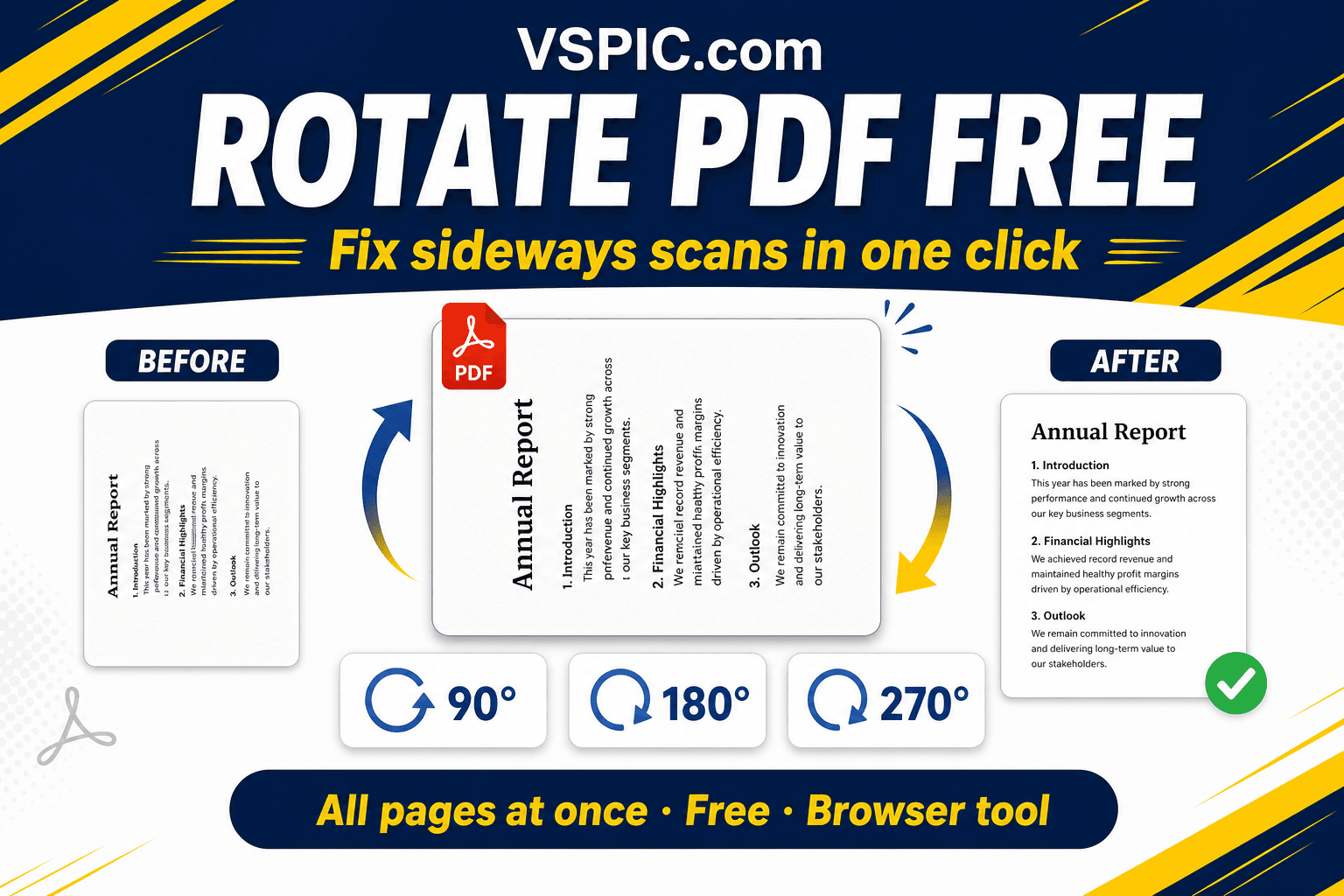
VSPIC Rotate PDF is a free browser tool that turns PDF pages clockwise or counterclockwise without installing Acrobat or printing and rescanning. Select all pages or fix individual orientations, apply 90°, 180°, or 270° rotation, and download a corrected file in seconds. Processing happens on your device — ideal for contracts, school assignments, receipts, and medical forms you do not want uploaded to a random cloud converter.
What does rotating a PDF page mean?
Rotating a PDF page changes the display orientation metadata and the visual layout of content on that page. A page scanned sideways appears horizontal on screen; a 90-degree rotation turns it upright for reading and printing. Unlike rotating a JPEG in a photo editor, PDF rotation is non-destructive to text when the file contains real text layers — vector text and embedded fonts rotate cleanly without the blur you get from re-scanning a physical page.
PDF viewers honor rotation flags stored in the page dictionary. That means one corrected file displays properly in Adobe Reader, Chrome's built-in PDF viewer, Preview on Mac, and most mobile PDF apps without each recipient fixing orientation themselves. For scanned image-only PDFs, rotation turns the bitmap inside the page box, which preserves legibility as long as the original scan resolution was adequate.
VSPIC Rotate PDF applies rotation in your browser using client-side PDF libraries. You upload or drag a file, choose rotation angles for all pages or specific ranges, and download the adjusted document. No account is required, and the file is not sent to VSPIC servers for processing — a meaningful privacy advantage over generic online converters that ingest your uploads on remote infrastructure.
Why rotate PDFs before sharing or printing?
Fix scanner and copier orientation mistakes
Office scanners default to auto-detect orientation, but glossy paper, mixed-size stacks, and booklet feeds confuse sensors. One mis-fed page can rotate an entire batch. Rotating the PDF after scanning is faster than walking back to the device and rescanning, especially when the physical document is no longer available.
Correct phone photo scans
Mobile scanning apps save PDFs quickly, but hurried captures often land at odd angles. Rotate PDF straightens receipts, whiteboard notes, and signed forms before you merge them into expense reports or email them to accounting.
Prepare documents for printing
Printing a sideways PDF wastes paper and forces manual tray adjustments. Rotating to the intended orientation ensures headers appear at the top and margins align with binders and fax cover expectations. Combine rotation with VSPIC Merge PDF when assembling multi-part packages.
Improve accessibility and readability
Screen readers and reflow modes work better when page orientation matches reading order. Sideways scans disrupt continuous reading for visually impaired users and anyone reviewing long documents on a phone. Fixing orientation is a small step that improves usability for the whole team.
Standardize mixed-orientation archives
Historical archives often mix portrait contracts with landscape exhibits. Before uploading to a document management system, batch-rotate sections so search thumbnails and preview panes look consistent. Consistent orientation reduces mistaken rejections in e-filing portals with strict layout rules.
How to rotate PDF pages with VSPIC
The Rotate PDF interface focuses on common cases: rotate every page the same direction, or fix a document where only some pages need adjustment. Have the source PDF ready and decide whether you need a permanent rotation baked into the file or a quick fix for one recipient.
- Navigate to Rotate PDF on vspic.com and upload your file by clicking the upload area or dragging the PDF from your file manager.
- Choose the rotation angle: 90° clockwise, 90° counterclockwise, or 180° for upside-down pages. Preview thumbnails if the tool displays them so you confirm direction before applying.
- Select all pages or specify page ranges when only certain sheets are misoriented — common in packets where one landscape chart sits among portrait pages.
- Click Rotate and download the corrected PDF. Open the result in your usual viewer to verify orientation, then share, print, or merge with other VSPIC PDF tools as needed.
Fix sideways scans in your browser. No signup required.
Rotate your PDF now — freeReal-life use cases for PDF rotation
Expense receipts from mobile scans
Sales teams photograph receipts on the road. Finance needs portrait PDFs for approval systems that reject landscape thumbnails. Rotate each receipt PDF before merging into a monthly expense packet with Merge PDF.
Legal exhibits and court filings
Exhibits scanned from bound books often arrive landscape. Clerks expect portrait pagination. Rotating exhibits before combining the main brief prevents rejection for improper formatting.
Academic homework and worksheets
Students submit phone photos of handwritten work as PDFs. Teachers grading on tablets rotate submissions once rather than twisting the device on every page.
Medical intake forms
Front-desk staff scan insurance cards and intake paperwork in a hurry. Rotating the PDF before attaching to the patient record ensures clinicians read forms right-side up during visits.
Real estate disclosure packets
Disclosure PDFs combine portrait contracts with landscape site surveys. Agents rotate individual sections, merge the packet, and send buyers a professional, uniformly oriented file.
Advantages of VSPIC Rotate PDF
- Free unlimited use with no watermarks on output.
- Client-side processing — files stay on your device.
- Supports 90°, 180°, and 270° rotation for all pages or selected ranges.
- Works in modern desktop and mobile browsers without plugins.
- Output remains a standard PDF compatible with all major readers.
- Integrates with Split PDF, Merge PDF, and Compress PDF in the same VSPIC toolkit.
Because rotation is a lightweight operation compared to OCR or compression, even large PDFs usually process quickly on mid-range laptops. On phones, close background apps if you rotate hundred-page scanned books to avoid memory pressure.
Common problems and fixes
Page looks correct in one viewer but sideways in another
Some PDFs carry conflicting rotation metadata from multiple editing passes. Apply rotation once in VSPIC and save a fresh copy rather than toggling repeatedly in different apps. Avoid opening the same file in two editors simultaneously, which can cause save conflicts.
Text appears blurry after rotation
Blur usually indicates the PDF is image-only with low scan resolution, not a rotation bug. Re-scan at 300 DPI if possible. For born-digital PDFs with selectable text, blur should not occur — re-download from the original source if it does.
Only some pages need rotation
Use page range controls to rotate subsets, or split the PDF with Split PDF, rotate the misoriented section, and merge back. This preserves correctly oriented pages untouched.
Rotated the wrong direction
Apply the opposite 90° turn or a 180° correction from the original file. Keep an unmodified backup until you verify the final orientation.
Expert tips for PDF orientation
- Scan in consistent orientation when possible — rotation fixes mistakes but prevention saves time.
- For double-sided scans, verify both sides before rotating; one-sided fixes can misalign duplex pages.
- Check thumbnail view after rotation before uploading to portals with automated layout checks.
- Combine rotation with Compress PDF when emailing large scanned bundles.
- When merging PDFs, rotate each source file before merge so the combined packet reads uniformly.
- Archive the corrected PDF rather than relying on viewer-specific temporary rotation.
Permanent rotation embedded in the PDF is preferable to viewer 'rotate view' commands, which do not travel with the file when you email it. Always save a rotated copy for sharing.
VSPIC vs other ways to rotate PDFs
| Method | Best for | Privacy | Cost | Setup time |
|---|---|---|---|---|
| VSPIC Rotate PDF (browser) | Quick fixes without installs | Local processing | Free | Under 1 minute |
| Adobe Acrobat | Batch rotation in enterprise | Local desktop | Paid | Install required |
| Preview (macOS) | Single files on Mac | Local | Free with Mac | Instant on Mac |
| Print and rescan | When no software available | Physical only | Paper and time cost | Slow, quality loss |
| Cloud converter sites | One-off uploads | File sent to server | Often freemium | Account sometimes required |
Is VSPIC Rotate PDF safe to use?
Yes for everyday business and personal documents. VSPIC processes PDFs locally in your browser, so file contents are not transmitted to VSPIC servers for rotation. That local-first model suits HR forms, financial statements, and legal scans that should not pass through unknown third-party infrastructure.
Use updated browsers on devices you trust. Public kiosk machines may leave downloaded files in shared Downloads folders — delete rotated outputs after use on shared computers. Rotation does not remove hidden metadata or redact content; use dedicated tools if you need metadata stripping or redaction.
Conclusion
Sideways PDFs are a small annoyance that compound across teams when every recipient fights orientation individually. VSPIC Rotate PDF fixes page direction in seconds, locally and for free. Rotate before you merge, print, or upload to portals that judge documents by their thumbnails.
Keep the tool bookmarked next to your scanner workflow — one quick rotation beats rescanning every time.
Common questions, direct answers
Can I rotate only some pages in a PDF?
Yes. Use page range options to rotate specific sheets while leaving others unchanged. For complex mixes, split the PDF, rotate the affected section, and merge the parts back together with VSPIC Merge PDF.
Does rotating a PDF reduce quality?
For text-based PDFs, rotation does not degrade quality because content is vector or font-based. For scanned image PDFs, rotation reorients the bitmap without resampling if the tool applies a pure transform — legibility depends on the original scan resolution, not the rotation step.
Is VSPIC Rotate PDF free?
Yes. The tool is free for personal and commercial use with no watermarks on downloaded files and no page count limits imposed by VSPIC.
Does VSPIC upload my PDF to a server?
No. Rotation runs in your browser on your device. Your file is not sent to VSPIC servers for processing.
What rotation angles are supported?
Typical options are 90 degrees clockwise, 90 degrees counterclockwise, and 180 degrees for upside-down pages. Multiple 90-degree applications equal 270-degree correction if needed.
Will rotated PDFs work on my phone?
Yes. The downloaded file is a standard PDF. Mobile PDF readers display permanently rotated pages correctly without extra steps.
Can I undo rotation after downloading?
Keep a backup of the original file. You can rotate again in the opposite direction, but working from the source is safest when undoing mistakes.
Does rotation change file size?
Rotation metadata changes are minimal and rarely affect file size noticeably. Large scanned PDFs stay roughly the same size after rotation.
Can I rotate password-protected PDFs?
You must unlock the PDF first if it requires a password to open. Use VSPIC Unlock PDF if you know the password and are authorized to modify the file, then rotate the decrypted copy.
Why are my PDF pages still sideways in email preview?
Some email clients ignore rotation metadata in inline previews. Download the attachment and open it in a dedicated PDF reader — the saved file from VSPIC should display correctly there.
Can I rotate PDFs on iPhone or Android?
Yes. Open Rotate PDF in your mobile browser, upload the file from your device storage or cloud drive, apply rotation, and save the result.
Should I rotate before or after merging PDFs?
Rotate each source file before merging when orientations differ. That produces a uniformly readable merged document without revisiting individual sections later.
Safe in our hands
VSPIC takes security seriously. Remember that…
- Free tools run in your browser when possible — your files and queries are not stored longer than needed to complete your request.
- No account is required. Use any tool immediately without sharing an email address.
- We use HTTPS on every page so data in transit is encrypted between your device and our servers.
- We only process what is needed to complete your request and do not sell your data or personal information.
Guides are written by the VSPIC Editorial Team under our editorial policy.
Open the free tool, use Rotate PDF, and get results in seconds.
Try Rotate PDF now