How to protect a PDF file with a password
Use this tool to add password protection to your PDF
Sending a PDF by email feels routine until the attachment contains bank statements, medical records, or a signed contract. A password-protected PDF adds a simple but effective layer of defense: even if the file is forwarded to the wrong person or saved on an unsecured shared drive, the contents stay locked until someone enters the correct passphrase.
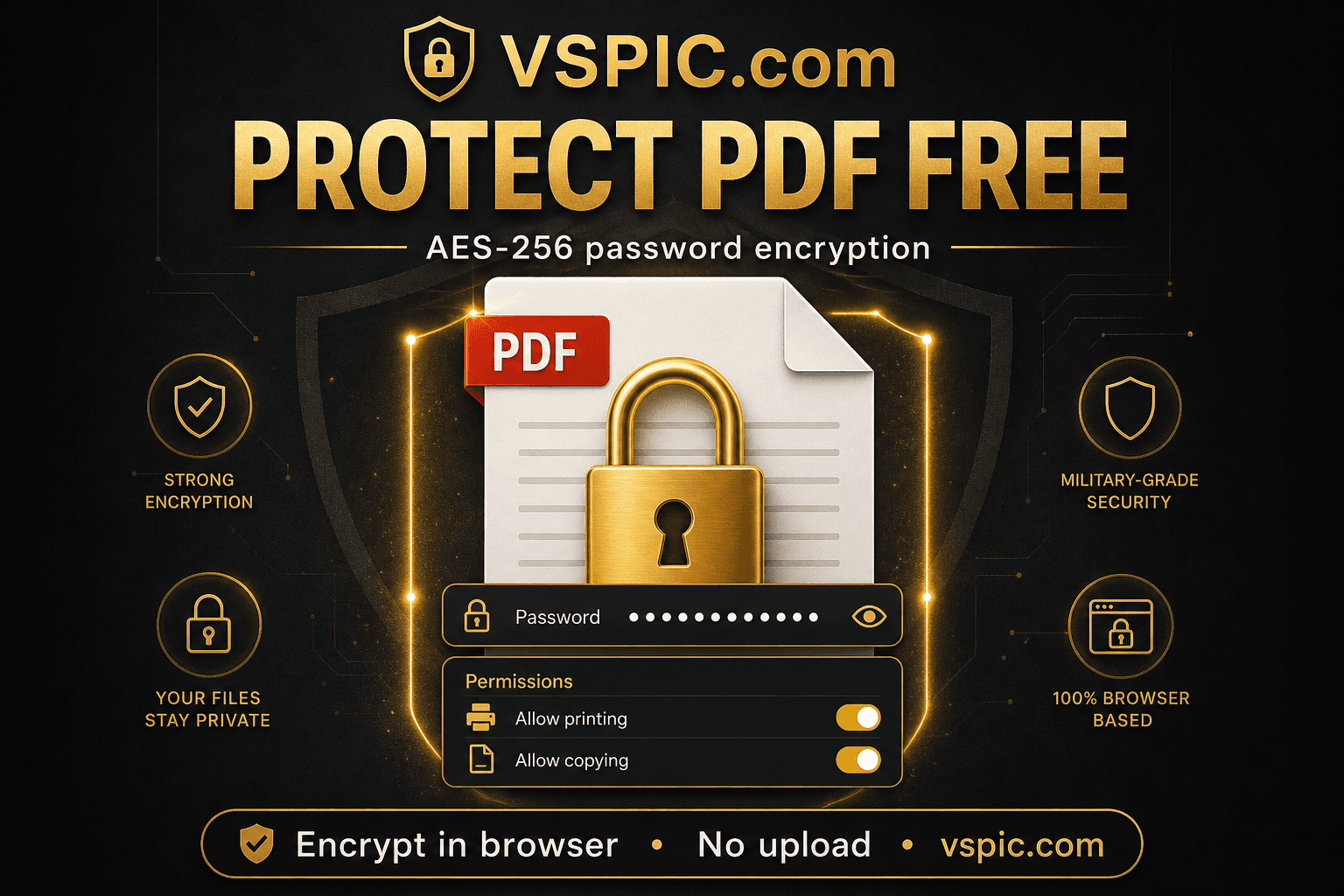
VSPIC Protect PDF is a free browser tool that encrypts PDF documents on your device. You choose a user password (required to open the file) and optionally an owner password with permissions such as blocking print or copy. No account, no cloud upload, and no desktop software — just open the tool, set your password, and download a secured copy ready to share.
What is PDF password protection?
PDF password protection — also called PDF encryption — wraps your document in a cryptographic layer so only people with the correct password can open it or perform restricted actions. The PDF specification supports two password types: a user password (sometimes called the document open password) that must be entered before anyone can view pages, and an owner password (permissions password) that controls what authorized viewers can do, such as print, copy text, or edit form fields.
Modern PDF encryption uses strong algorithms such as AES-256, which is the same family of ciphers used by banks and government agencies for data at rest. When you protect a PDF, the file structure remains a standard PDF — email clients, Adobe Acrobat, Preview on Mac, and most mobile PDF readers can open it as long as the recipient has the password. The protection travels with the file; you do not need the recipient to use the same tool you used to encrypt it.
VSPIC Protect PDF applies encryption entirely in your browser using WebAssembly and JavaScript PDF libraries. Your original file is read from your device, encrypted locally, and written back as a new download. That local-first design matters for compliance-minded teams and anyone handling personal data under GDPR, HIPAA-adjacent workflows, or internal security policies that forbid uploading client documents to unknown servers.
Why password-protect PDFs before sharing?
Stop accidental disclosure in email chains
Email autocomplete is responsible for countless misdirected attachments. A password-protected PDF limits damage: the wrong recipient gets a locked file, not your full bank statement or employee review. Share the password through a separate channel — a phone call, SMS, or encrypted chat — so a single mistake does not expose everything at once.
Meet client and vendor security requirements
Law firms, accountants, and healthcare administrators increasingly require encrypted attachments for sensitive deliverables. Password-protected PDFs satisfy many vendor security questionnaires without forcing recipients to install proprietary software. You can document that encryption was applied before transmission, which supports audit trails for ISO 27001 and similar frameworks.
Control printing and copying
Opening a PDF is not the only risk — recipients can print, copy paragraphs, or export pages unless you restrict those permissions with an owner password. VSPIC lets you configure common permission flags so viewers can read on screen but cannot easily duplicate content. This is useful for draft proposals, internal pricing sheets, and pre-release reports marked confidential.
Protect archived documents on shared storage
Files stored on NAS drives, SharePoint libraries, or backup disks may outlive their intended audience. Encrypting PDFs before archival ensures that a future data leak or misconfigured folder permission does not instantly expose years of payroll or legal correspondence. The password becomes part of your records-management policy alongside retention schedules.
Add security without changing workflows
Desktop PDF editors can encrypt files, but installing and licensing software on every laptop is slow for small teams. A free browser tool removes that friction: anyone with Chrome, Firefox, Safari, or Edge can protect a PDF in under a minute. The output remains a standard encrypted PDF that works everywhere PDFs are already accepted.
How to protect a PDF with VSPIC (step by step)
The VSPIC Protect PDF workflow is designed for speed. You do not create an account or verify an email address. Keep your PDF ready on your computer or phone, choose a strong password before you start, and plan how you will transmit that password separately from the file itself.
- Open Protect PDF on vspic.com and click or drag your PDF into the upload area. Files are processed in memory on your device — they are not sent to VSPIC servers for encryption.
- Enter a user password that recipients must type to open the document. Use at least 12 characters mixing letters, numbers, and symbols. Avoid names, birthdays, or words found in dictionaries.
- Optionally set an owner password and choose permission restrictions such as disallowing printing, copying text, or modifying the document. If you only need open protection, the user password alone is sufficient.
- Click Protect or Encrypt, wait for processing to finish, and download the secured PDF. Test the file yourself by opening it in another app and entering the password before you send it to clients or colleagues.
Encrypt PDFs in your browser. No signup, no server upload.
Protect your PDF now — freeReal-life use cases for PDF encryption
Tax returns and financial statements
Accountants emailing completed returns should never send unencrypted PDFs that contain Social Security numbers and bank details. Protect the return with a password communicated verbally or via a separate message, and remind clients to store the file in a secure folder rather than leaving it in an unencrypted Downloads directory.
HR offer letters and compensation reviews
Offer letters and performance reviews contain salary data that must not leak across teams. HR can encrypt each PDF with a password derived from information only the employee knows — never send the password in the same email as the attachment. Combine encryption with expiring shared links if your organization uses a document portal.
Legal contracts and NDAs
Before countersignature, draft contracts circulate among multiple parties. Password protection on draft PDFs reduces the risk of premature disclosure if a thread is forwarded. Restrict printing on drafts marked confidential so recipients must request a clean copy for execution.
Medical and insurance documentation
Clinic administrators and insurance brokers regularly exchange forms with protected health information. While password-protected PDFs alone do not satisfy every HIPAA technical safeguard, they are a practical minimum for email-based exchange when paired with secure password delivery and retention policies.
Student records and academic transcripts
Registrars sending unofficial transcripts or disciplinary documents to students and parents benefit from encryption, especially when recipients use shared family computers. Encourage students to save protected files outside cloud-synced public folders when possible.
Advantages of VSPIC Protect PDF
- Free with no page limits or watermarks on output files.
- Runs locally in the browser — files are not uploaded to VSPIC servers for encryption.
- Produces standard encrypted PDFs compatible with Adobe Acrobat, browser viewers, and mobile apps.
- Supports user and owner passwords with common permission restrictions.
- Works on Windows, macOS, Linux, Android, and iOS without installing software.
- Pairs naturally with other VSPIC PDF tools such as Merge PDF, Compress PDF, and Add Watermark.
Because encryption happens on your machine, you can use the tool on airplanes, in offices with strict outbound filtering, or on machines where IT has not approved desktop PDF suites. The trade-off is that very large PDFs may take longer to process on low-memory devices — compress oversized scans first with VSPIC Compress PDF if performance becomes an issue.
Common problems and fixes
Recipient cannot open the protected PDF
Verify they are entering the user password, not the owner password if you set both differently. Check for extra spaces when copying passwords from chat apps. Some older PDF readers struggle with AES-256 — ask recipients to update Adobe Acrobat Reader or open the file in a current browser. If you forgot the password yourself, you cannot recover the content without specialized recovery tools; store passwords in a password manager at creation time.
Printing is blocked but the recipient needs a hard copy
Owner-password permissions are intentional. Re-export a copy with printing allowed, or provide a separate unencrypted version through a secure channel after identity verification. For drafts, blocking print is a feature; for final deliverables, relax restrictions.
File size increased after encryption
Encryption adds a small overhead to the PDF container. The increase is usually negligible compared to embedded images. If the file grew substantially, you may have duplicated streams during export — try protecting again from the original unencrypted source.
Browser tab crashed on a huge PDF
Split very large documents with VSPIC Split PDF, protect each section, then merge if needed. Alternatively compress scanned pages first. Closing other tabs frees memory on mobile devices.
Expert tips for stronger PDF security
- Use a unique password per document or client — password reuse defeats the purpose if one passphrase leaks.
- Deliver passwords out-of-band: never put the password in the same email thread as the attachment subject line.
- Consider a password manager shared vault for team documents so passphrases are recoverable by authorized staff.
- Test on a second device before sending to external parties.
- Combine encryption with watermarks on draft PDFs using VSPIC Add Watermark to PDF for visible confidentiality labels.
- Rotate passwords when personnel leave teams that knew shared passphrases.
- Document which files were encrypted and when for compliance audits.
Password protection protects confidentiality in transit and at rest on casual storage, but it is not DRM. A determined recipient with the user password can often screenshot pages or re-scan printed copies unless additional controls apply. Match your protection level to the actual sensitivity of the content.
VSPIC vs other ways to protect PDFs
| Method | Best for | Privacy | Cost | Setup time |
|---|---|---|---|---|
| VSPIC Protect PDF (browser) | Quick encryption without installs | Local processing, no upload | Free | Under 1 minute |
| Adobe Acrobat Pro | Enterprise policy and certificates | Local desktop app | Paid subscription | Install + license |
| Microsoft Word Save as PDF | Basic open password only | Local if Office installed | Office license | Minutes if Office present |
| Cloud PDF SaaS | Batch automation via API | Files uploaded to vendor | Freemium / paid tiers | Account signup |
| macOS Preview | Single-file encryption on Mac | Local on Mac | Free with macOS | Instant on Mac only |
Is VSPIC Protect PDF safe to use?
Yes, for typical confidential business and personal documents when you trust the device you are using. VSPIC processes PDFs in your browser; the encryption operation uses your device's CPU and memory rather than sending file bytes to a remote server. That architecture reduces exposure to third-party data breaches and aligns with privacy expectations for tax, legal, and HR workflows.
You should still follow general security hygiene: work on updated browsers, avoid public computers for highly classified material, and clear Downloads folders on shared machines. Password strength matters more than the tool brand — a weak six-character password falls to guessing attacks regardless of AES-256 encryption. For nation-state-level threats or regulated data requiring certified encryption modules, consult your compliance officer about approved enterprise tools.
VSPIC does not store your password or retain copies of protected files after you close the tab. If you lose the password, VSPIC cannot recover it — treat encryption as one-way unless you maintain your own backup of the unencrypted original in a secure location.
Conclusion
Password-protected PDFs remain one of the simplest ways to add confidentiality to everyday document sharing. VSPIC Protect PDF delivers that capability for free, in the browser, without uploading sensitive files to the cloud. Set a strong user password, configure permissions when drafts should not be printed or copied, and share passphrases through a separate channel.
Whether you are an accountant sending returns, an HR manager distributing reviews, or a freelancer delivering signed contracts, encrypting before attach is a habit worth building. Open the tool, protect your PDF, and send with confidence.
Common questions, direct answers
What is the difference between a user password and an owner password?
The user password (document open password) is required to view the PDF at all. The owner password (permissions password) controls what someone can do after opening — print, copy text, edit, or fill forms. You can set both to different values. If you only need to lock opening, the user password alone is enough.
Does VSPIC upload my PDF to a server when I encrypt it?
No. VSPIC Protect PDF runs in your browser and encrypts the file locally on your device. Your PDF is not sent to VSPIC servers for processing, which makes the tool suitable when policies forbid cloud uploads of client or personal data.
What encryption standard does VSPIC use for PDFs?
VSPIC applies modern PDF encryption compatible with widely supported readers, using strong cipher suites such as AES-256 where supported by the PDF version. Encrypted files open in Adobe Acrobat, browser PDF viewers, Preview, and most mobile PDF apps that support password-protected documents.
Can I remove a password later with VSPIC?
If you know the password, use VSPIC Unlock PDF to remove encryption from files you are authorized to decrypt. You cannot remove a password without knowing it — that would defeat the purpose of protection. Always keep a secure backup of the original or record passwords in a password manager.
Is there a file size limit for protecting PDFs?
There is no artificial page cap imposed by VSPIC. Very large scanned PDFs may consume significant browser memory. If encryption fails or the tab becomes slow, split the document with Split PDF or compress it first, then protect each part.
Will password protection work on phones and tablets?
Yes. Protect PDF works in mobile browsers on iOS and Android. Recipients can also open encrypted PDFs in mobile PDF reader apps by entering the password you provide. Test once on your target device before sending to clients.
Can recipients still screenshot a protected PDF?
Password protection encrypts the file and can restrict printing and copying, but it cannot fully prevent screenshots or photos of a screen while someone is viewing the document. For highly sensitive content, combine encryption with contractual obligations and access controls beyond PDF permissions.
Should I email the password in the same message as the PDF?
No. Send the PDF and password through separate channels — for example, email the file and text the password, or use a phone call. If one channel is compromised, the attacker still needs the other to access content.
Does encryption increase PDF file size?
Encryption adds a small amount of overhead to the file structure. The change is usually minor compared to embedded images in scanned documents. If size matters for email limits, run Compress PDF after protecting.
Can I block printing but allow viewing?
Yes. Use owner-password permission settings to disallow printing while still allowing the document to be opened with the user password. Recipients see pages on screen but many readers will block the print command.
Is Protect PDF free for commercial use?
Yes. VSPIC Protect PDF is free for personal and business use with no subscription. There are no watermarks added to encrypted output files.
What if I forget the password I set?
PDF encryption is designed to be irreversible without the password. VSPIC cannot recover lost passwords. Keep an unencrypted backup in a secure location or store passphrases in a team password manager when you create protected files.
Safe in our hands
VSPIC takes security seriously. Remember that…
- Free tools run in your browser when possible — your files and queries are not stored longer than needed to complete your request.
- No account is required. Use any tool immediately without sharing an email address.
- We use HTTPS on every page so data in transit is encrypted between your device and our servers.
- We only process what is needed to complete your request and do not sell your data or personal information.
Guides are written by the VSPIC Editorial Team under our editorial policy.
Open the free tool, use Protect PDF, and get results in seconds.
Try Protect PDF now