How to convert Word to PDF online for free
Turn DOCX documents into shareable PDF files without Microsoft Office
Microsoft Word remains the default format for resumes, reports, proposals, and homework — but Word files behave differently on every machine depending on installed fonts, Office version, and operating system. Recipients open DOCX files and see shifted margins, missing typefaces, or broken tables. PDF solves that problem by freezing layout into a read-only format that looks the same on phones, Chromebooks, and print shops.
VSPIC Word to PDF is a free browser converter that transforms DOCX documents into PDF without requiring Microsoft Office on your computer. Upload your file, convert locally when possible, and download a PDF ready for email, job applications, and client deliverables. For teams that cannot install desktop software or must avoid sending drafts to unknown cloud servers, browser-based conversion keeps the workflow simple and private.
What is Word to PDF conversion?
Word to PDF conversion takes a document authored in Microsoft Word's DOCX format — or compatible files from LibreOffice and Google Docs exports — and renders it into Portable Document Format. PDF embeds fonts when possible, rasterizes complex elements faithfully, and packages pages into a single file most devices open without proprietary software. The result is a snapshot of your document at conversion time, ideal for final delivery rather than collaborative editing.
DOCX files are XML-based archives containing text runs, styles, media, and layout rules. PDF stores positioned glyphs, vector graphics, and embedded images per page. A good converter maps headings, lists, tables, headers, footers, and page breaks from Word's model to PDF page boxes so pagination survives the trip. Simple letters convert cleanly; documents heavy with text boxes, SmartArt, or custom macros may need a quick visual check after export.
VSPIC Word to PDF runs in your web browser as part of the free VSPIC toolkit at vspic.com. You select a DOCX file, trigger conversion, and save the PDF. The tool targets everyday business documents — contracts, CVs, meeting minutes, and school papers — without forcing you through paid SaaS trials or desktop suite installations.
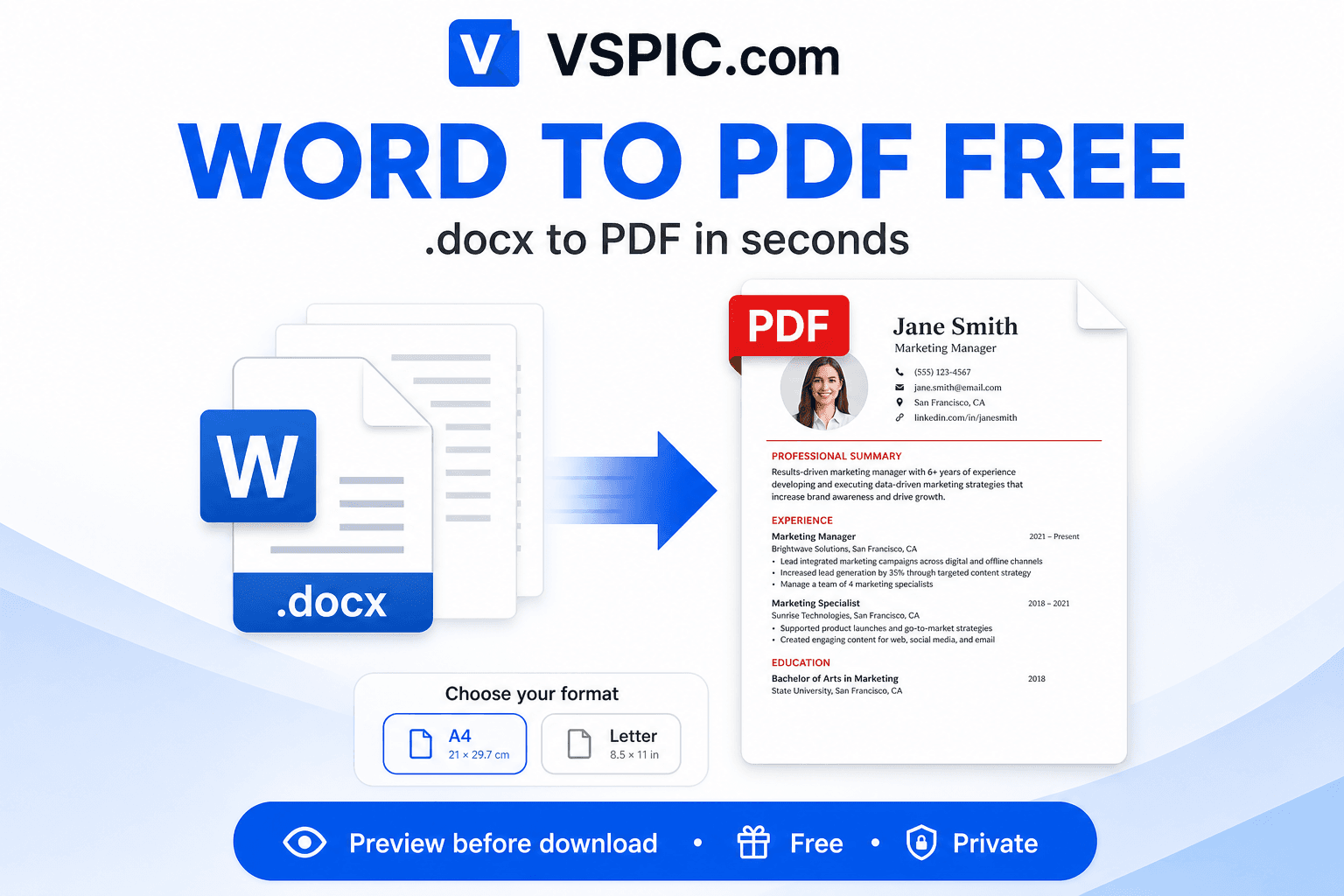
Why convert Word documents to PDF?
Lock layout for clients and hiring managers
Recruiters open resumes on phones and tablets. A PDF preserves your careful spacing and bullet alignment where DOCX might reflow awkwardly. Client-facing proposals look professional when typography cannot shift between Mac and Windows.
Prevent accidental edits
PDF is the de facto read-only delivery format. Sending PDF instead of Word reduces the chance recipients alter pricing tables or contract clauses before signing. Combine with Protect PDF when you also need password protection.
Meet upload requirements
Government portals, university application systems, and vendor onboarding forms often accept PDF only. Converting at the last step avoids rejection messages and frantic re-submission deadlines.
Smaller predictable file size for sharing
DOCX with embedded high-resolution images can balloon in size. PDF export sometimes compresses visuals efficiently for email. Use Compress PDF afterward if the portal enforces a megabyte cap.
Print-ready output
Print shops and copy centers prefer PDF because what you see on screen matches paper. Converting from Word eliminates 'it looked different in Word' surprises at the counter.
How to convert Word to PDF with VSPIC
Save your document as DOCX from Word, Google Docs (Download as DOCX), or LibreOffice before converting. Close the file in Word if your operating system locks open files during upload. Review spelling once more — PDF is harder to fix typos in without returning to the source.
- Open Word to PDF on vspic.com and upload your DOCX file via drag-and-drop or the file picker.
- Wait for conversion to complete in the browser. Progress indicators show when the PDF is ready on larger documents with images.
- Download the PDF and open it in your viewer to verify page breaks, headers, and tables — especially the last page and any landscape sections.
- Optional: run Compress PDF if the file must fit an attachment limit, or Protect PDF before sending confidential contracts.
DOCX to PDF in your browser. No Office license required.
Convert Word to PDF now — freeReal-life use cases for Word to PDF
Job applications and CVs
Applicants export résumés and cover letters to PDF so ATS systems and recruiters see consistent formatting. Keep a DOCX master for edits and regenerate PDF for each tailored application.
Freelance statements of work
Consultants draft SOWs in Word for track changes, then deliver signed PDF versions to clients. Conversion marks the transition from negotiable draft to agreed scope.
School essays and assignments
Learning management systems often require PDF submission to prevent font substitution on graders' machines. Students convert before the deadline and keep the Word file for revision if feedback requires rewrites.
Real estate and legal letters
Attorneys and agents merge boilerplate in Word, then PDF for e-signature platforms that reject editable formats. Check signature line placement after conversion.
Internal memos and policies
HR publishes finalized policies as PDF on intranets while maintaining DOCX sources for annual updates. One conversion step standardizes distribution.
Advantages of VSPIC Word to PDF
- Free conversion without Microsoft 365 subscription.
- Browser-based — works on Chromebooks and locked-down corporate laptops.
- No watermarks on output for typical documents.
- Integrates with VSPIC Compress PDF, Merge PDF, and Protect PDF.
- Fast path from draft to deliverable for common DOCX files.
- Privacy-oriented local processing where supported by the tool implementation.
For complex Word features — extensive tracked changes, embedded macros, or legacy DOC formats — verify output carefully or save as PDF from Word when exotic elements are present. Most business correspondence converts without surprises.
Common problems and fixes
Fonts look different in the PDF
PDF cannot embed fonts that were not available during conversion. Use standard fonts (Arial, Times New Roman, Calibri) in Word or embed fonts in Word's options before exporting DOCX. Missing font substitution is the top cause of layout drift.
Images appear blurry
Oversized images pasted from the web may downsample during conversion. Insert high-resolution images in Word and avoid excessive compression. For photo-heavy documents, compare PDF zoom at 100% to Word print preview.
Table or column misalignment
Nested tables and text boxes confuse some converters. Simplify layout or export problematic pages separately. Merge PDF combines partial exports if needed.
File too large after conversion
Run VSPIC Compress PDF on the output. Alternatively reduce image resolution in Word before converting again.
Expert tips for better Word to PDF results
- Use Word's built-in heading styles — they map cleanly to PDF structure for accessibility.
- Set page size explicitly (Letter vs A4) before converting for international recipients.
- Remove tracked changes or accept them before conversion so markup does not appear in the PDF.
- Hyperlinks usually survive conversion — click-test the PDF before sending.
- Add page numbers in Word if the PDF must be referenced in contracts.
- Keep the DOCX source archived; PDF is final form, not a convenient editor.
When delivering to print, export with bleed settings in Word if your vendor requires them, or ask the print shop to proof a single page before the full run.
VSPIC vs other Word to PDF methods
| Method | Best for | Office required? | Cost | Privacy |
|---|---|---|---|---|
| VSPIC Word to PDF (browser) | Quick DOCX export anywhere | No | Free | Browser-local processing |
| Microsoft Word Save as PDF | Complex Word-native features | Yes | Office license | Local |
| Google Docs Download PDF | Docs-authored files | No (Google account) | Free tier | Cloud document |
| LibreOffice Export | Open-source desktop users | No (LibreOffice) | Free | Local |
| Email attachment as DOCX | Collaborative editing | Recipient-dependent | Free | Layout not guaranteed |
Is VSPIC Word to PDF safe to use?
Yes for typical business and personal documents on trusted devices. VSPIC aims to process files in the browser without routing your DOCX through remote conversion farms, which reduces exposure compared to anonymous upload-and-email converter sites.
Avoid converting highly classified material on shared computers. Clear Downloads after handling HR, legal, or medical drafts. PDF output can still contain hidden metadata from Word — review document properties if your policy requires author name removal.
Conclusion
Converting Word to PDF is the last mile of document delivery — the step that makes your work readable everywhere. VSPIC Word to PDF offers a free, browser-based path from DOCX to shareable PDF without installing Office. Convert, visually proof the result, then compress or protect as your workflow demands.
Keep editing in Word; send the world PDF.
Common questions, direct answers
Does VSPIC Word to PDF support DOCX files?
Yes. Upload standard DOCX files created by Microsoft Word, Google Docs exports, or LibreOffice. Legacy DOC format may require saving as DOCX in Word first for best results.
Do I need Microsoft Office installed?
No. VSPIC converts in the browser without a local Office license. You only need a modern web browser and your DOCX file.
Is Word to PDF conversion free?
Yes. VSPIC Word to PDF is free for personal and commercial use with no subscription.
Will my fonts and formatting be preserved?
Most standard formatting converts faithfully. Custom fonts must be available or embeddable; otherwise substitution may shift spacing slightly. Always preview the PDF before sending important documents.
Can I convert Word to PDF on my phone?
Yes. Open Word to PDF in your mobile browser and upload the DOCX from your files app or cloud storage.
Does VSPIC upload my document to a server?
VSPIC processes conversions in the browser where the tool supports client-side conversion, keeping files on your device rather than sending them to remote servers for typical workflows.
Can I convert multiple Word files at once?
Convert files one at a time in the browser, then merge resulting PDFs with VSPIC Merge PDF if you need a single combined deliverable.
How do I reduce PDF size after conversion?
Use VSPIC Compress PDF on the output file. Also reduce large images inside Word before reconverting.
Will hyperlinks work in the PDF?
Most converters preserve URL hyperlinks from Word. Click-test the downloaded PDF to confirm critical links before publishing.
Can I password-protect the PDF after conversion?
Yes. Open VSPIC Protect PDF, upload the converted file, and set a user or owner password before sharing sensitive contracts.
What about tracked changes in Word?
Accept or reject tracked changes in Word before converting if you do not want markup visible in the PDF. Unresolved markup may appear as annotations or strikethrough text.
Is PDF editable after conversion?
PDF is meant for fixed layout. Edit the DOCX source and convert again for revisions. For minor PDF edits, use dedicated PDF editors rather than expecting Word-like editing in PDF viewers.
Safe in our hands
VSPIC takes security seriously. Remember that…
- Free tools run in your browser when possible — your files and queries are not stored longer than needed to complete your request.
- No account is required. Use any tool immediately without sharing an email address.
- We use HTTPS on every page so data in transit is encrypted between your device and our servers.
- We only process what is needed to complete your request and do not sell your data or personal information.
Guides are written by the VSPIC Editorial Team under our editorial policy.
Open the free tool, use Word to PDF, and get results in seconds.
Try Word to PDF now