How to convert images to PDF online
Combine JPG, PNG, and other photos into one PDF document for free
Portals, accountants, and professors still ask for PDFs while phones shoot JPEG. Converting image to PDF means wrapping one or more pictures into a document format every operating system opens the same way — page order preserved, printable, and harder to accidentally edit than a loose photo attachment.
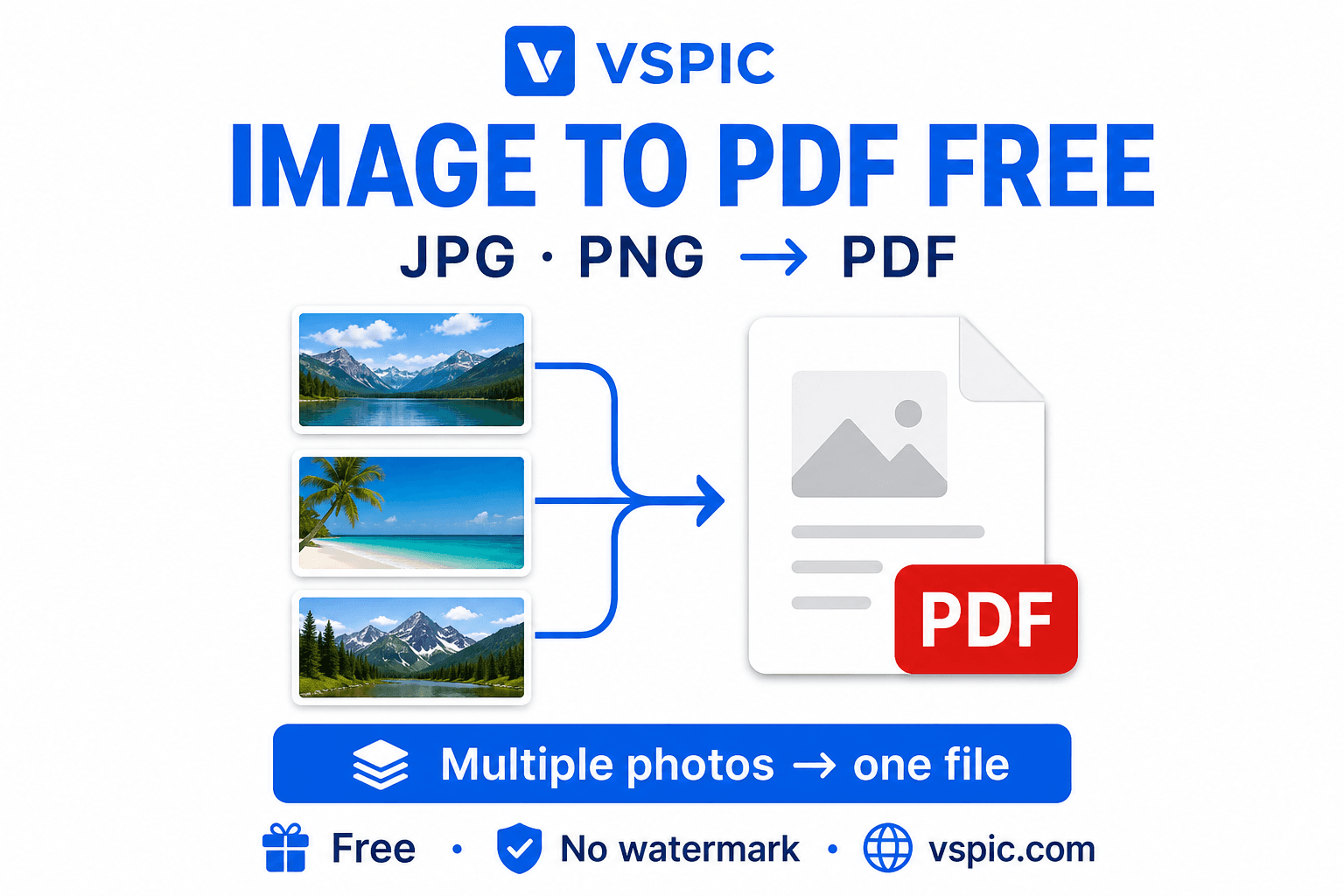
VSPIC's Image to PDF tool builds that document in your browser. Drop in scans or camera photos, arrange pages, and download a single PDF without Adobe Acrobat or a paid cloud converter. Your files stay on your device during conversion.
What is an image to PDF converter?
An image to PDF converter embeds raster images — JPG, PNG, and similar formats — into PDF pages. Each image typically becomes one page, though tools may tile multiple pictures per sheet. The output is a self-contained PDF viewers render consistently on Windows, macOS, Android, and iOS.
Unlike scanning software tied to a hardware device, an online converter accepts files already on your phone or laptop. VSPIC focuses on practical jobs: expense receipts, signed contract photos, homework submissions, and portfolio samples — not forensic document imaging, but reliable PDFs you can send today.
Image-based PDFs are not the same as digitally born PDFs exported from Word. Text in a photograph remains a picture — you cannot highlight or search it unless you run OCR elsewhere. For submissions that require selectable text, type or export natively from the source application when possible, and use image-to-PDF when the only source is a camera.
Why use VSPIC for image to PDF?
One attachment instead of twelve photos
Email clients and university portals choke on many separate JPEGs. A single PDF keeps page order stable when admissions officers review applications or when finance teams archive receipt photos by month.
Print-friendly layouts
Printers and copy shops expect PDF. Converting phone photos of whiteboard notes or knitting patterns produces a document that scales to letter or A4 without cropping unpredictably in the print dialog.
Browser-based privacy
Tax documents and medical forms should not sit on random cloud queues. VSPIC processes conversion locally where supported, so W-2 photos and insurance cards are not uploaded to an unknown retention policy.
No Acrobat subscription
Adobe's desktop tools are powerful but expensive for occasional users. A free converter covers episodic needs — semester submissions, rental applications, and one-off client deliverables.
Gateway to full PDF toolkit
After converting images, you can merge with existing PDFs, compress for email size limits, or password-protect sensitive packets using other VSPIC utilities without switching websites.
How to convert images to PDF on VSPIC
Gather all pages before starting so order is intentional. Rename files with numeric prefixes if your tool sorts alphabetically. Shoot or export at consistent orientation — mixed portrait and landscape pages are fine in PDF but confuse reviewers when every page requires rotating the viewer.
- Navigate to vspic.com/image-to-pdf and add images via drag-and-drop or file picker. Select multiple files when you need a multi-page document.
- Arrange page order — receipts chronologically, portfolio pieces by project, homework photos by problem number.
- Choose layout options shown on the tool page (fit to page, margins, orientation) if available.
- Generate and download the PDF. Open in your viewer to confirm rotation and legibility before sending.
Build a PDF from photos in your browser — free.
Convert images to PDFReal-life use cases
Expense reports and receipts
Sales teams photograph lunch receipts on the road. Finance asks for one PDF per month. Image to PDF bundles JPEGs into a single attachment accounts payable can file without renaming IMG_4832.jpg fifty times.
Student homework and exams
Students photograph handwritten solutions when scanners are unavailable. Professors prefer one PDF per assignment for LMS upload boxes with single-file limits.
Rental and visa applications
Landlords request PDF packets of ID, pay stubs, and references. Applicants convert phone photos of documents into ordered PDFs that meet upload portals rejecting camera rolls.
Portfolio and photography proofs
Freelancers send client proofs as PDF image galleries that open uniformly on tablets during meetings. Page order tells a story — wide establishing shot first, details after.
Legal and insurance documentation
After minor incidents, policyholders photograph damage and policy numbers. A single timestamped PDF simplifies claims intake compared with scattered MMS images.
Advantages of VSPIC image to PDF
Camera-first workflows dominate field work — inspectors, teachers, claims adjusters — where nobody carries a flatbed scanner. Image to PDF meets those users where their data already lives: the camera roll. VSPIC closes the last mile to formal PDF submission without forcing a desktop sync first.
- Combine multiple JPG and PNG files without desktop PDF software.
- Local browser processing reduces exposure for tax and identity scans.
- Works cross-platform when you only have a browser on a borrowed laptop.
- Chains with Merge PDF and Compress PDF on the same site for finishing steps.
- Free downloads without watermarking typical document pages.
Month-end receipt packet workflow
Finance teams standardize month-end close: photograph each receipt the day of purchase, filename with YYYY-MM-DD-merchant, convert weekly batches to PDF ordered by date, merge into YYYY-MM-expenses.pdf, compress, upload to accounting. VSPIC image-to-PDF plus merge plus compress supports that pipeline without desktop Acrobat.
Students submitting handwritten exams should photograph each page in order, convert to PDF, verify page count matches the exam length, compress if the LMS rejects size, and keep originals until grades post.
Common problems and fixes
Sideways pages happen when phone gyroscope orientation metadata conflicts with the PDF layout. Rotate source images with VSPIC Rotate Image before converting, or use Rotate PDF afterward on exported pages.
Huge PDFs result from full-resolution camera photos. Resize or compress images first when email gateways cap attachments at 10–25 MB. Compress PDF after conversion if the portal still complains.
- Blurry text: move closer when photographing documents; use even lighting.
- Cropped edges: leave margin around paper in the photo or crop consistently.
- Wrong order: drag-sort images before generating the PDF.
- Color shift: shoot documents in neutral light; avoid yellow indoor bulbs.
Expert tips for better PDFs from photos
Treat each photo session like a micro scan job: consistent distance, consistent lighting, consistent naming. Chaos in the camera roll becomes chaos in the PDF — finance reviewers matching receipts to transactions need predictable order and legible merchant names.
- Photograph documents flat on a contrasting surface — dark desk under white paper.
- Fill the frame but keep all corners visible so perspective correction is easier.
- Name files logically before upload if the tool preserves order alphabetically.
- Compress images before PDF when targeting email — PDF size tracks embedded JPEG quality.
- For archival scans, keep lossless PNG sources even if PDF uses JPEG internally.
- Password-protect sensitive PDFs with VSPIC Protect PDF before emailing.
- Disable flash when photographing glossy IDs — glare obliterates numbers.
- Use airplane mode during long capture sessions to avoid notification blur from vibration.
- Photograph one document per frame unless pages are physically stapled together.
- Verify totals and dates at 150% zoom before sending to accounting.
Building reliable document photos
Phone cameras default to HDR and aggressive noise reduction that can soften small type. Tap to focus on the document text, hold the phone parallel to the page to reduce keystone distortion, and use daylight near a window instead of a single overhead bulb that casts your shadow. Two seconds of care beat ten minutes fighting illegible PDFs.
Multi-page receipts should follow chronological order with one receipt per page when finance teams reconcile — cramming three receipts onto one image saves pages but slows auditors. For identity documents, one document per page with margins visible helps reviewers confirm nothing was cropped out.
After conversion, open the PDF in Chrome or Acrobat and zoom to 150 percent on the smallest text block. If it is readable, email compression will likely be fine. If not, reshoot before compressing — compression cannot recover blur from camera shake.
Color and grayscale choices
Color PDFs from color photos are larger but necessary when highlights and stamps carry meaning. Grayscale conversion before PDF can shrink literary scans where color adds no value. VSPIC Convert and compress tools help tune that trade-off after PDF creation.
VSPIC vs alternatives
Mobile scan apps apply perspective correction but often require accounts. Print-to-PDF from Word is awkward for pure photos. VSPIC offers straightforward multi-image PDF assembly in the browser.
| Option | Best for | Trade-off |
|---|---|---|
| VSPIC Image to PDF | Quick multi-photo PDF in browser | Heavy camera RAW not supported |
| Adobe Acrobat | OCR and redaction | Paid for advanced features |
| iOS Notes scan | Single-page mobile scans | Less control on desktop batches |
| Google Drive save as PDF | Docs already in Drive | Uploads photos to cloud |
| Scanner hardware | High-volume office mailroom | Upfront cost and space |
Is it safe to convert images to PDF on VSPIC?
VSPIC processes files in your browser for supported PDF workflows, which is preferable to emailing identity documents to unknown cloud converters. Still use trusted networks, avoid public café Wi‑Fi for tax packets, and delete downloads on shared PCs.
PDFs can embed EXIF from source photos. Strip sensitive metadata from images before conversion when GPS tags are present. Read vspic.com privacy policy for site analytics; no payment is needed for conversion.
Conclusion
Turning photos into PDFs bridges the gap between phone cameras and formal submission portals. VSPIC's free Image to PDF converter assembles JPG and PNG pages locally, preserves your chosen order, and hands off to merge, compress, and protect tools when you need a polished packet.
Photograph documents carefully, order pages deliberately, and compress when email size matters. Bookmark the converter for the next receipt run or homework upload crunch.
When auditors ask for 'PDF not photos,' they usually mean one consolidated PDF — this tool is exactly that translation layer from camera roll to formal attachment.
Accessibility and readability checks
Recipients with low vision need sharp contrast and straight pages. Photograph on dark surfaces for white paper to increase edge detection in your own review, even if the PDF tool does not auto-crop. Straighten pages visually before shooting to avoid tiny unreadable margins after conversion.
If the audience includes screen-reader users, remember image PDFs are not accessible text. Provide a typed summary or use OCR tools when accessibility is mandatory. For internal ops where sighted reviewers approve invoices, image PDFs remain the pragmatic standard.
- Zoom every page to 150% before sending externally.
- Reject shots with motion blur — retake beats recompress.
- Include date stamps in filenames for audit trails.
- Password-protect identity packets with VSPIC Protect PDF.
Common questions, direct answers
Can I combine multiple JPGs into one PDF?
Yes. Add several images and generate a multi-page PDF with each image typically mapping to one page, depending on layout settings on the tool page.
Does VSPIC support PNG with transparency?
PNG converts to PDF; transparent areas usually render against a white page background. For print, verify appearance after download.
Is conversion free?
Yes. VSPIC provides Image to PDF without charging for standard browser-based conversion.
Are files uploaded to a server?
VSPIC emphasizes client-side PDF generation so documents remain on your device during conversion, unlike many cloud-only converters.
Can I set page orientation?
Use on-page layout controls when available. Rotate individual photos beforehand with VSPIC Rotate Image if pages appear sideways.
How do I reduce PDF file size?
Compress source images before conversion, or run the output through VSPIC Compress PDF for email-friendly size.
Will text in photos be searchable?
Standard image-to-PDF embeds pictures as images — text is not OCR'd. For searchable text you need dedicated OCR software.
Can I merge the PDF with other PDFs later?
Yes. Use VSPIC Merge PDF to append contracts, cover letters, or existing digital PDFs to your image-based document.
What is the max number of images?
Browser memory sets practical limits. Dozens of phone photos usually work; split very large batches into multiple PDFs if the tab becomes sluggish.
Is commercial use allowed?
Yes for outputs VSPIC generates, subject to your rights in the source images. No watermark is added to typical PDFs.
HEIC iPhone photos?
Convert HEIC to JPG with VSPIC Convert to JPG if the PDF tool does not accept HEIC directly in your browser.
How does VSPIC compare to Smallpdf image to PDF?
Smallpdf uploads files to cloud infrastructure. VSPIC focuses on free browser-local processing integrated with merge, split, and compress utilities on vspic.com.
Safe in our hands
VSPIC takes security seriously. Remember that…
- Free tools run in your browser when possible — your files and queries are not stored longer than needed to complete your request.
- No account is required. Use any tool immediately without sharing an email address.
- We use HTTPS on every page so data in transit is encrypted between your device and our servers.
- We only process what is needed to complete your request and do not sell your data or personal information.
Guides are written by the VSPIC Editorial Team under our editorial policy.
Open the free tool, use Image to PDF, and get results in seconds.
Try Image to PDF now